Problem
In How to set up toolbar with custom text and graphics - Part 1 - labels below graphics? we showed you how to set up toolbar with the custom text below custom graphics.
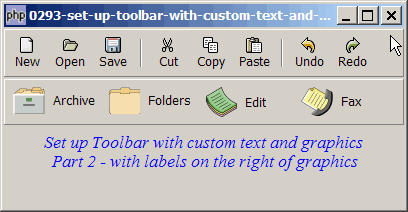
In this Part 2, we show you how to have the labels displayed on the rihgt of the custom graphics as shown below:
Solution
Instead of vbox for the custom tool button, use a hbox.
Sample Code
The following image files are required by the sample code below. Please save a copy of the image files and put them in the same directory where you store the sample code.
 | 0070.1.png |
 | 0070.2.png |
 | 0070.3.png |
 | 0070.4.png |
| 1 2 3 4 5 6 9 10 11 12 13 14 15 16 17 18 19 20 21 22 23 24 25 26 27 28 29 31 32 33 34 35 36 37 38 40 42 43 44 45 46 47 48 49 51 52 53 54 55 58 59 60 61 62 63 64 65 66 67 68 69 70 71 72 73 74 75 77 79 80 81 | <?php $window = new GtkWindow(); $window->set_title($argv[0]); $window->set_size_request(400, 180); $window->connect_simple('destroy', array('Gtk','main_quit')); $window->add($vbox = new GtkVBox()); // define menu definition $toolbar_definition1 = array('New', 'Open', 'Save', '<hr>', 'Cut', 'Copy', 'Paste', '<hr>', 'Undo','Redo'); $toolbar_definition2 = array( 'Archive' => '0070.1.png', 'Folders' => '0070.2.png', 'Edit' => '0070.3.png', 'Fax' => '0070.4.png'); setup_toolbar($vbox, $toolbar_definition1); setup_toolbar($vbox, $toolbar_definition2); // display title $title = new GtkLabel("Set up Toolbar with custom text and graphics\n". " Part 2 - with labels on the right of graphics"); $title->modify_font(new PangoFontDescription("Times New Roman Italic 10")); $title->modify_fg(Gtk::STATE_NORMAL, GdkColor::parse("#0000ff")); $vbox->pack_start($title); $vbox->pack_start(new GtkLabel('')); $window->show_all(); Gtk::main(); // setup toolbar function setup_toolbar($vbox, $toolbar_definition) { $toolbar = new GtkToolBar(); $vbox->pack_start($toolbar, 0, 0); foreach($toolbar_definition as $label=>$item) { if ($item=='<hr>') { $toolbar->insert(new GtkSeparatorToolItem(), -1); } else { $stock_image_name = 'Gtk::STOCK_'.strtoupper($item); if (defined($stock_image_name)) { $toolbar_item = GtkToolButton::new_from_stock( constant($stock_image_name)); $toolbar_item->connect('clicked', 'on_toolbar_button', $item); } else { $toolbutton = new GtkHBox(); // note 1 $img=GtkImage::new_from_file($item); $toolbutton->pack_start($img, 0, 0); $toolbutton->pack_start(new GtkLabel(' '), 0, 0); $toolbutton->pack_start(new GtkLabel($label), 0, 0); $toolbar_item = new GtkToolButton(); $toolbar_item->set_label_widget($toolbutton); $toolbar_item->connect('clicked', 'on_toolbar_button', $label); } $toolbar->insert($toolbar_item, -1); } } } // process toolbar function on_toolbar_button($button, $item) { echo "toolbar clicked: $item\n"; } ?> |
Output
As shown above.Explanation
We make use of the entire code from How to set up toolbar with custom text and graphics - Part 1 - labels below graphics?
The only difference is in the following line:
- Use a hbox instead of vbox.
Read more...