Problem
Suppose you would like to set up checkboxes or check buttons with images as options as shown below:
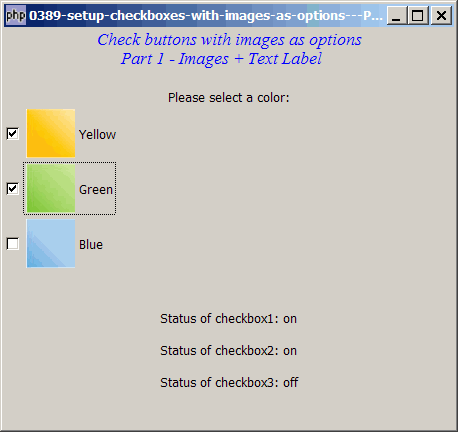
Solution
- A GtkCheckButton is a subclass of GtkButton.
- As such, we can make use of exactly the same technique as outlined in How to display button with image? to display images in the check button label.
Sample Code
Note: The following image files are required by the sample code below. Please save a copy of the image files and put them in the same directory where you store the sample code.
 | square_yellow.jpg |
 | square_green.jpg |
 | square_blue.jpg |
| 1 2 3 4 5 6 7 8 9 10 11 12 13 14 15 16 17 18 19 20 21 22 23 24 25 26 27 28 29 30 31 32 33 34 35 36 44 45 46 47 48 49 50 51 52 53 54 55 56 57 58 59 61 62 63 64 65 66 67 68 69 70 71 72 | <?php $window = new GtkWindow(); $window->set_size_request(450, 400); $window->connect_simple('destroy', array('Gtk','main_quit')); $window->add($vbox = new GtkVBox()); // display title $title = new GtkLabel("Check buttons with images as options\n". " Part 1 - Images + Text Label"); $title->modify_font(new PangoFontDescription( "Times New Roman Italic 10")); $title->modify_fg(Gtk::STATE_NORMAL, GdkColor::parse("#0000ff")); $title->set_size_request(-1, 40); $vbox->pack_start($title, 0, 0); $vbox->pack_start(new GtkLabel(), 0, 0); $vbox->pack_start(new GtkLabel('Please select a color:'), 0, 0); // setup checkboxes $checkbox1 = setup_checkbox('Yellow', 'square_yellow.jpg'); // note 1 $checkbox2 = setup_checkbox('Green', 'square_green.jpg'); // note 1 $checkbox3 = setup_checkbox('Blue', 'square_blue.jpg'); // note 1 // pack them inside vbox $vbox->pack_start($checkbox1, 0, 0); $vbox->pack_start($checkbox2, 0, 0); $vbox->pack_start($checkbox3, 0, 0); // add a status area $vbox->pack_start($status_area = new GtkLabel('Select the checkboxes')); $window->show_all(); Gtk::main(); function setup_checkbox($label, $img_filename) { $checkbox = new GtkCheckButton(); $checkbox->connect('toggled', "on_toggle"); $button_hbox = new GtkHBox(); // note 2 $checkbox->add($button_hbox); $img = GtkImage::new_from_file($img_filename); // note 3 $button_hbox->pack_start($img, 0, 0); // note 3 $button_hbox->pack_start(new GtkLabel(), 0, 0); $button_hbox->pack_start(new GtkLabel($label), 0, 0); // note 4 return $checkbox; } // call-back function when user pressed a check button function on_toggle($checkbox) { global $status_area; $button_hbox = $checkbox->child->get_children(); // note 5 $label = $button_hbox[2]->get_text(); // note 5 global $checkbox1, $checkbox2, $checkbox3; $status1 = $checkbox1->get_active() ? 'on' : 'off'; // note 6 $status2 = $checkbox2->get_active() ? 'on' : 'off'; // note 6 $status3 = $checkbox3->get_active() ? 'on' : 'off'; // note 6 $status_area->set_text("Status of checkbox1: $status1\n Status of checkbox2: $status2\n Status of checkbox3: $status3"); } ?> |
Output
As shown above.
Explanation
The above makes use of the code from How to setup and process checkboxes? and How to display button with image?
What's new here:
- Note that the filename of the image is passed as the last parameter.
- Create an hbox to hold both the image and the label.
- Load the image and stuff it inside the hbox.
- Now attach the text label too.
- To retrieve the check button label, we need to access the hbox first then get the text label.
- Check whether the check button is active.
Read more...